Struggling to keep track of client projects, deadlines, and your own to-do list? You need a project management tool that actually works for VA life. This post breaks down the best options (ClickUp, Asana, Trello, Monday.com, and more), what each one does well, and how to pick the right one for your business.
Table of Contents
Let’s be real: when you’re juggling multiple clients, a million tasks, and trying to keep your own business running, sticky notes and random Google Docs are not going to cut it.
You need a project management tool that helps you stay organized, meet deadlines, and look professional—without adding more chaos to your day.
The good news? There are tons of project management tools for virtual assistants out there. The bad news? Too many options can feel overwhelming, and picking the wrong one can waste time and money.
In this post, I’m breaking down the best project management tools for virtual assistants in 2025, what makes each one great (or not), and how to choose the right one for your business.
Why Virtual Assistants Need a Project Management Tool
Here’s the thing: you can’t manage client work, your own tasks, deadlines, and communications all in your head. (And if you’re trying to, you’re probably stressed out and dropping balls.)
A good project management tool helps you:
Track all your client projects in one place so nothing falls through the cracks.
Set deadlines and reminders so you’re not scrambling at the last minute.
Communicate with clients without a million back-and-forth emails.
Stay organized even when you’re working with 3, 5, or 10 different clients at once.
Look professional because nothing says “I’ve got my act together” like a clean, organized system.
Bottom line: If you want to scale your VA business and work with multiple clients without losing your mind, you need project management software for VAs.
What to Look for in Project Management Tools for Virtual Assistants
Not all project management tools are created equal. Some are built for huge teams managing complex software projects. Others are perfect for solo VAs managing a handful of clients.
Here’s what to look for when choosing the best project management tool for your VA business:
Ease of use: You don’t have time for a steep learning curve. You need something intuitive that you can set up fast.
Client collaboration: Can you invite clients to view projects, leave feedback, or approve tasks? This saves you from endless email threads.
Task management: Can you create tasks, set deadlines, assign priorities, and track progress?
Integrations: Does it connect with tools you already use (Gmail, Google Drive, Slack, Canva)?
Mobile app: Can you check tasks and update progress from your phone? (Because sometimes you’re at soccer practice, not your desk.)
Price: Is there a free plan? What do you get at each pricing tier? Does it make sense for your budget?
Templates: Does it come with pre-built templates so you’re not starting from scratch?
Keep these in mind as we dive into the best options.
The 5 Best Project Management Tools for Virtual Assistants
1. ClickUp – Best for VAs Who Want Customization and Power
What it is: ClickUp is an all-in-one project management tool that lets you customize literally everything. Tasks, docs, goals, time tracking, reminders—it does it all.
Why VAs love it:
You can create separate workspaces for each client (or one workspace with folders for each client).
Task views include lists, boards (Kanban-style), calendars, Gantt charts, and more.
Built-in time tracking so you can track billable hours right inside tasks.
Docs feature lets you create SOPs, meeting notes, and project briefs all in one place.
Automations help you streamline repetitive tasks (like moving tasks to “Done” when marked complete).
Integrations with Gmail, Google Drive, Slack, Zoom, and 1,000+ other apps.
The downside: ClickUp has SO many features that it can feel overwhelming at first. If you just need simple task lists, this might be overkill.
Best for: VAs who want a simple, no-frills tool that just works.
3. Trello – Best for Visual Thinkers and Beginners
What it is: Trello uses boards, lists, and cards to organize tasks. Think of it like a digital bulletin board with sticky notes.
Why VAs love it:
Super visual and easy to understand. Perfect if you’re new to project management tools.
Drag-and-drop interface makes it easy to move tasks through stages (To Do → In Progress → Done).
You can create a board for each client or one master board with lists for each client.
Power-Ups (integrations) let you add features like calendar view, custom fields, and automations.
You can invite clients to boards so they can see progress and leave comments on cards.
Mobile app is simple and easy to use.
The downside: Trello is pretty basic. If you need advanced features like time tracking, reporting, or Gantt charts, you’ll need to pay for premium Power-Ups or use another tool.
Pricing:
Free plan: Unlimited cards, 10 boards per workspace, 1 Power-Up per board.
Best for: VAs who want total control over how they organize their work and don’t mind building their own systems.
Not sure where to start? Here's your step-by-step plan
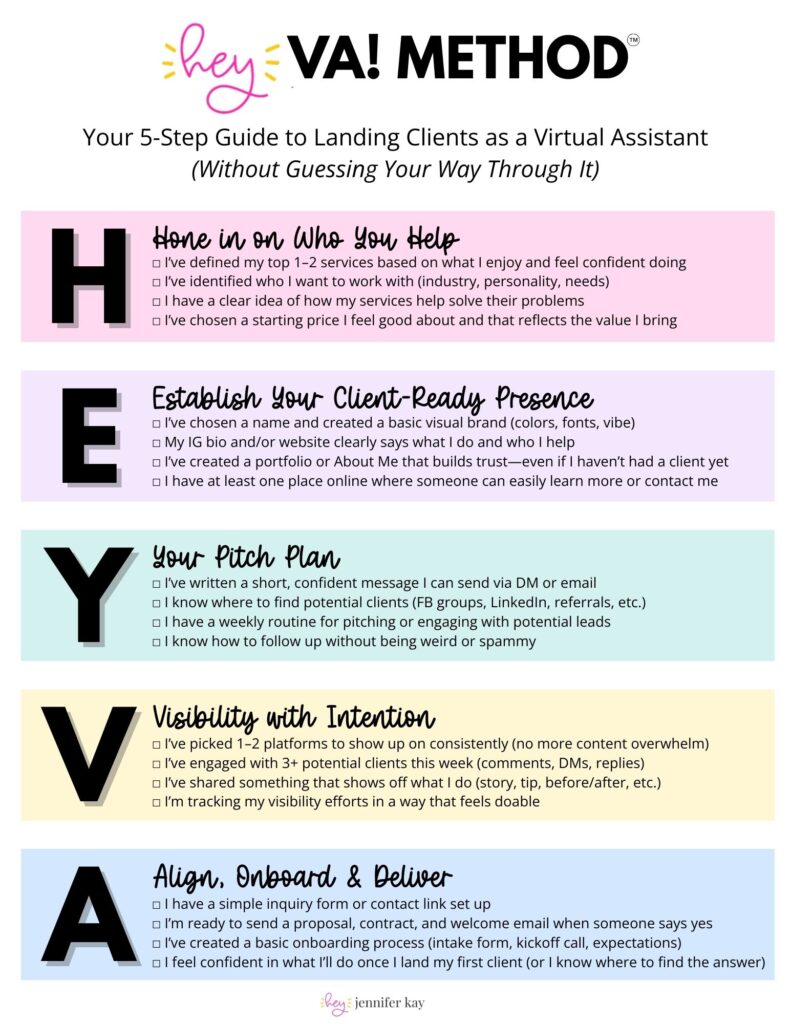
The Hey VA Method breaks down everything you need to do to land your first client – from figuring out what to offer, to building your presence, to actually pitching. No guessing, no overwhelm. Just check off the boxes and go!!
How to Choose the Right Project Management Tool for Your VA Business
Still not sure which tool to pick? Here’s a quick decision guide:
If you’re just starting out and want something simple: Start with Trello (free and easy to learn).
If you want a clean, straightforward task manager: Go with Asana (simple but powerful).
If you want one tool that does everything: Try ClickUp (all-in-one, highly customizable).
If you want to impress clients with beautiful dashboards: Use Monday.com (modern and client-friendly).
If you want total flexibility and customization: Build your system in Notion (all-in-one workspace).
My advice? Start with the free plan of one or two tools and test them out for a week. See which one feels right for your workflow.
You can always switch later. (And honestly, most VAs try a few different tools before finding “the one.”)
Templates and Examples
Here are some ways to set up your project management tool as a VA:
Option 1: One workspace per client
Create a separate workspace (or board) for each client.
Inside each workspace, create lists or folders for different project types (social media, email marketing, admin tasks).
Tag tasks with deadlines, priorities, and status (To Do, In Progress, Done).
Option 2: One master workspace with folders for each client
Create one workspace for your entire VA business.
Inside, create folders or lists for each client.
Use filters or tags to view tasks by client, deadline, or priority.
Option 3: Separate workspaces for client work vs. your own business
Create one workspace for client projects.
Create a separate workspace for your own business tasks (marketing, finances, admin).
This keeps client work and your own to-dos separate.
Sample task structure:
Task name: Create Instagram carousel for Client A
Due date: Friday, Nov 8
Priority: High
Status: In Progress
Notes: Use brand colors, include CTA in final slide
Attachments: Brand guidelines PDF, stock photos
Common Mistakes and Fixes
Mistake #1: Picking a tool with too many features you’ll never use. Fix: Start simple. You don’t need every bell and whistle. Pick a tool that matches your current needs, not what you *might* need in two years.
Mistake #2: Not inviting clients to collaborate. Fix: One of the biggest benefits of project management tools is client collaboration. Invite them as guests so they can see progress, leave feedback, and approve tasks without a million emails.
Mistake #3: Creating a complicated system that takes forever to maintain. Fix: Keep it simple. If updating your project management tool feels like a chore, you’re doing too much. Tasks, deadlines, and status updates should be quick and easy.
Mistake #4: Using your project management tool just for clients and forgetting about your own business tasks. Fix: Create a workspace or board for your own business tasks (invoicing, marketing, admin). This keeps you organized and ensures nothing falls through the cracks.
Mistake #5: Never using templates. Fix: Most tools have templates (or you can create your own). Use them! If you do the same tasks for clients every month (like creating a social media calendar), save it as a template so you’re not starting from scratch every time.
Next Steps
Here’s what to do right now:
Step 1: Pick one or two tools from this list and sign up for the free plan.
Step 2: Spend 30 minutes setting up a workspace for one client (or a test project).
Step 3: Create a few tasks, set deadlines, and play around with the features.
Step 4: Use it for one week. See if it feels intuitive and helps you stay organized.
Step 5: If it works, keep using it. If not, try another tool. There’s no “wrong” choice—just the right fit for you.
Ready to get organized and start looking like the professional VA you are? Pick a tool and get started today!
Want more help building systems for your VA business? Grab my 14-Days to VA Roadmap where I walk you through setting up every system you need to launch—including project management, contracts, proposals, and more. Or join VA Launch Academy for templates, workshops, and live support as you build your business.
Share This Post:
Email
Facebook
Pinterest
Twitter
You might also like...
Think email marketing is outdated? Think again. Building an email list is one of the most powerful ways to land consistent VA clients without chasing them on social media. This post breaks down exactly how to start, grow, and use your email list to fill your calendar with dream clients!
Pitching yourself as a virtual assistant shouldn’t feel gross or pushy. But if you’re staring at a blank email wondering how to sound professional without sounding like a used car salesman, you’re not alone. This post gives you the exact framework (and copy-paste templates) to pitch your VA services confidently—without the ick factor!
Struggling to keep track of client projects, deadlines, and your own to-do list? You need a project management tool that actually works for VA life. This post breaks down the best options (ClickUp, Asana, Trello, Monday.com, and more), what each one does well, and how to pick the right one for your business.
Wondering where to find virtual assistant clients when you’re just starting out? Forget job boards that pay $5/hour. This post breaks down 5 real places to find quality clients who actually pay what you’re worth—from Facebook groups to warm outreach. You’ll walk away with a game plan to land your first (or next) client!
Tired of competing on price as a general VA? Specializing as a virtual assistant lets you charge package rates, attract better clients, and actually scale your business. This post breaks down the best specializations to consider, how to learn the skills, and how to position yourself as an expert—even if you’re brand new!
Is being a virtual assistant worth it? If you want flexibility and real income without leaving your house, yes. But it’s not all laptop-on-the-beach vibes. This post breaks down the honest pros, the real cons, and who this career is (and isn’t) perfect for. You’ll walk away knowing if the VA life is your next move.
 100 Tasks VAs are Getting Paid to Do –